Screen Capture Resolution and Zoom Standards for UI Demonstrations
Prepare captures for where viewers watch them, not where you record them.

Getting screen capture resolution right isn't a one-setting problem. The correct resolution, zoom level, and delivery format depend on where the demo actually gets watched, and most teams get this backwards: they optimize for how the recording looks on their own monitor, not for where it ships. That's why so many product walkthroughs look sharp during recording and turn to mush the second they hit a browser embed or a phone screen.
Capture resolution, display resolution, and the video player or embed container are three separate variables. Most people treat them as one. A UI label that reads perfectly on a 27-inch 4K monitor during recording can turn into a smear of pixels once that footage gets compressed into a 720p embed. The recording looked fine. The viewing conditions changed. Desktop still leans hard on 1920x1080 as the standard resolution, but mobile splits across so many screen sizes that no single setting covers most of it. A demo tuned for a 1080p desktop can still fail across a wide swath of the phones and tablets it actually gets watched on.
How 1080p became the default and where it still holds up
1920x1080 earned its spot for a few plain reasons: it plays on every major platform, keeps file sizes manageable, and shows enough UI detail for everyday use. Pair it with 30fps and that's the default combination for tutorials, presentations, and walkthroughs.
1080p holds up fine in a handful of places: social media embeds, in-product walkthroughs, help center articles, internal documentation, quick-share links, and email-embedded clips (which email clients often compress or constrain further).
Here's the catch, and it's the one most people miss. 1080p is only as sharp as the zoom and font size baked into the recording itself. Record a full-screen UI at 1080p with no zoom applied, and viewers on smaller or lower-DPI screens still can't read the text, no matter how correct the resolution number looks on paper. The resolution was never the problem. The prep was.
Fix it before anyone hits record, not after. Set the app or system UI zoom to a moderately elevated level first, so text reads clearly at native resolution instead of relying on zoom effects added later in editing. Pair that with basic housekeeping: neutral wallpaper, hidden desktop icons, a clean browser or app window. None of that changes the resolution number, but it cuts the visual noise that distracts no matter what resolution gets used.
When 4K capture is actually worth the tradeoff
4K, meaning 3840x2160, isn't a blanket upgrade. Treating it like one wastes storage and export time for no real gain, and most teams reach for it out of habit rather than need. It earns its keep in specific spots and falls flat everywhere else.
It's worth the extra weight for UIs with dense data: dashboards, settings panels, code editors, data tables, anywhere a label has to stay legible under scrutiny. It also makes sense for website hero videos shown at large viewport widths, for YouTube uploads where the platform can serve full resolution, and for big screens in sales rooms or conference halls.
The real argument for 4K isn't sharpness for its own sake. It's post-production headroom. A 4K source gives editors room to crop and zoom without the footage falling apart, while pushing zoom past roughly 200% on HD footage starts introducing visible pixelation. Shoot in 4K and that ceiling moves way up.
None of this comes free. Files get bigger, exports take longer, and storage and bandwidth costs climb, which matters for any team producing content at volume. Worth checking too: plenty of off-the-shelf recording tools cap out at 1080p, so confirm the capture tool can actually hit 4K before building a workflow around the assumption that it can.
On Retina and other HiDPI displays, there's a quieter trap. Recording at anything other than a 1:1 pixel ratio, meaning 100% display scaling or capture from a standard external monitor, lets the operating system silently downsample what should be a 4K recording into something that plays back looking like 1080p. Nobody notices until the footage ships.
Reach for 4K on flagship material and anything with a long shelf life. Stick with 1080p for frequent updates, internal docs, and any delivery surface that's going to compress or downscale the footage regardless of what gets fed into it.
What zoom actually does for a viewer, and why auto-zoom changed the calculus
An unzoomed demo has one obvious failure mode: a cursor clicking around a full-screen UI at 1080p is nearly unwatchable. Viewers can't make out labels, can't follow what's happening step by step, and they check out fast. Zoom fixes that by making the thing the viewer needs to see actually visible. That's most of the job right there.
Two approaches dominate, and they solve different problems. Auto-zoom follows click events and animates smoothly with no manual keyframing required, which makes it the right call for most tutorials and product demos where getting the video out the door matters more than frame-by-frame polish. Manual keyframe zoom trades speed for control: exact timing, exact magnification, exact focus area. That control is worth paying for on flagship content. It's overkill for a quick internal how-to, and treating every recording like flagship content is how teams burn a week on a video nobody outside the team will rewatch twice.
A standard keyframe pattern looks like this: set 100% scale at the opening, hold two to five seconds, then land a second keyframe somewhere between 150% and 200%. Push past 200% zoom on HD source footage and pixelation becomes a common problem, affecting the majority of cases without a 4K source, which loops right back to the case for shooting in 4K when heavy zoom is part of the plan.
Zoom and compression interact in a way that's easy to miss. Zoom doesn't touch codec behavior directly, but by making the important part of the UI take up more of the frame, it gives that detail a better shot at surviving aggressive compression once it's sitting in an embedded player. There's also a quieter risk: mismatched resolution and zoom settings can throw off the cursor tracking that auto-zoom algorithms depend on, which is one more reason to lock down consistent capture settings before layering zoom on top.
Matching resolution and zoom to the surface where the demo will actually be watched
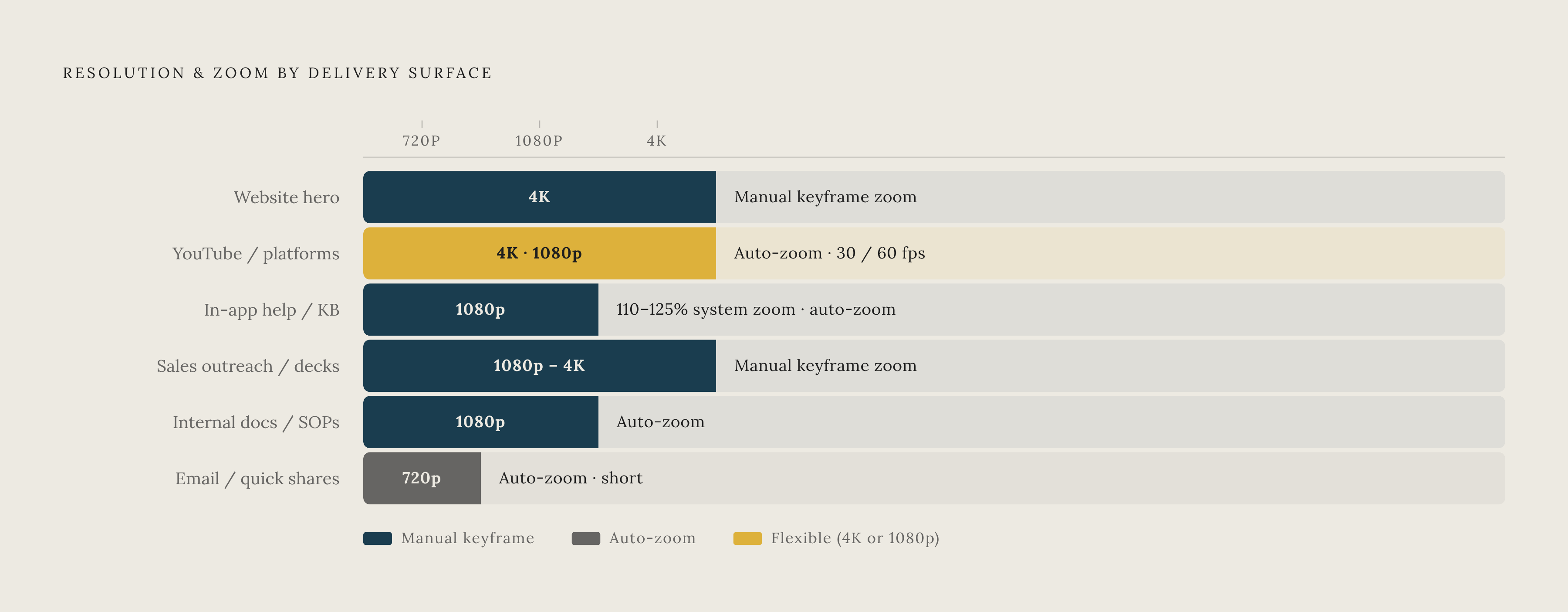
Resolution and zoom aren't independent dials set once and forgotten. The right combination gets decided together, based on where the video will play and what detail absolutely has to survive that trip.
Website hero or product marketing page. Capture in 4K where the tool allows it. Use manual keyframe zoom for cinematic control, though auto-zoom is fine if speed matters more. Large viewport, high stakes for a first impression, long shelf life: all three justify the extra weight of 4K.
YouTube and public platforms. 4K or 1080p, depending on how dense the UI is. Stick with 30fps for standard tutorials, and save 60fps for content with fast scrolling, drag-and-drop, or quick cursor movement. Auto-zoom covers most tutorial formats fine.
In-app help, knowledge base, and help center embeds. 1080p is the standard here. Prep the UI at 110% to 125% system zoom before recording so text reads clearly at native resolution. Use auto-zoom on click events, and keep clips short. Feature walkthroughs work best kept short; quick tips and highlights even shorter.
Sales outreach and presentation decks. 1080p at minimum, 4K if the demo covers dense dashboards or data-heavy screens. Manual keyframe zoom matters more here than anywhere else, because controlling exactly what the prospect sees, and exactly when they see it, is the entire point of a sales video. Video demos give the presenter narrative control; interactive demos suit self-serve discovery better once the pitch is done.
Internal documentation, SOPs, and training modules. 1080p is enough. Screen recordings shot at 1080p or higher help keep UI text legible, which matters for any automated processing of the footage downstream. Auto-zoom keeps step-by-step sequences readable, and each clip should stick to one discrete workflow segment. Pairing the video with a written, step-by-step guide, built at the same time rather than after the fact, turns a ten-minute onboarding recording into a scannable reference people can check without rewatching the whole thing.
Email embeds and quick internal shares. 720p is fine, given how much the email container constrains things anyway; consider a higher resolution if the clip will also circulate beyond the email context. Auto-zoom keeps things legible even at small dimensions, and duration should stay short.
Mobile and HiDPI displays as the edge cases that expose weak capture settings
Mobile fragmentation isn't a footnote. Mobile traffic now makes up the majority of global web use, and usage scatters across so many device sizes that no single capture setting will serve most of it. Desktop has a dominant resolution. Mobile doesn't, and that gap is where most capture plans quietly fall apart.
A walkthrough recorded and zoomed for a 1920x1080 desktop viewer can look completely different on a small Android screen in portrait mode. Text that felt comfortably zoomed on a desktop monitor can still come across too small once that same video gets squeezed into a mobile player.
Captions and on-screen labels stop being a nice-to-have at that point. For mobile viewers, they compensate directly for the resolution loss that happens when 1080p footage lands in a small, heavily compressed mobile viewport.
HiDPI and Retina capture come with their own discipline. Record at a 1:1 pixel ratio and skip OS-level display scaling during capture. A lot of standard recording tools cap output at 1080p even when running on Retina hardware, and the resulting video looks soft on any HiDPI screen it plays back on. Tools built to capture crisply at 2K or higher close that gap without requiring a full 4K pipeline.
Tablets sit somewhere in between. A portrait video shot at 1080p with clear zoom tends to render well on most tablet screens. Switch to landscape, though, and UI elements can reframe in ways that catch editors off guard.
The throughline across every surface stays the same. Preparing the UI before recording, large fonts, a clean frame, system zoom set at a moderately elevated level, cuts down how much has to get fixed in post, no matter where the video ends up playing.
How AI-assisted production tools handle resolution and zoom automatically and where human judgment still sets the standard
Video for software documentation has gone from a nice extra to close to universal. The tooling behind that shift has gotten good enough to automate some of the most tedious technical steps, and it's worth being clear about exactly which steps those are, because the automation stops earlier than most teams assume.
AI handles a few things well. Auto-zoom that tracks click events without manual keyframing takes the most time-consuming part of zoom work off the table for tutorial and SOP formats. Smart cropping and framing keep the active part of the UI legible regardless of source resolution. Voiceover and caption generation pick up some of the slack from resolution loss on mobile and heavily compressed players. One-click translation and localization matter too: a localized video still needs the same caption and zoom standards to stay legible in every language version it ships in.
Judgment still sits with a person, though, in a few specific spots, and no amount of AI polish downstream changes that. Choosing the right capture resolution for the delivery surface has to happen before recording starts, since AI tools can only work with the source material they're handed. Pre-recording UI prep, system zoom, a clean desktop, sensible font size, is something no post-production tool can retroactively fix once the footage is in the can. Deciding when auto-zoom is good enough versus when a project needs a manual keyframe pass still comes down to a call about the content, not the software. And reviewing where an AI-generated zoom actually lands matters most in dense dashboards or settings panels, where the algorithm might center on the wrong element entirely.
A few named platforms show the range on the market. Snagit covers screen capture with annotation tools, a step-tool built for tutorials, and confidentiality features like Smart Redact, which auto-blurs sensitive data on screen; its video editing is oriented toward capture and annotation workflows rather than full production work. Leadde supports dozens of languages and a large library of AI avatars, along with version control and analytics, which suits standardized onboarding across regions where localized captions have to stay legible at consistent zoom levels. Platforms in the AI avatar and voiceover space are better suited to presenter-style demos where the UI walkthrough plays a supporting role rather than the lead. Other tools on the market combine AI-driven editing, subtitle generation, and collaboration features. And a newer category of platform combines screen recording with documentation output directly, recording one workflow once and generating both a finished video and a written SOP from the same capture, which turns the resolution and zoom decision into a single upstream choice instead of something repeated for every format downstream.
Vendors love to promote how many times faster AI-assisted production runs compared to the traditional route. The multiple isn't the point. Speed only pays off if the underlying capture settings are right from the start, since no amount of automation downstream fixes a demo that was recorded at the wrong resolution for where it was always going to be watched.