AI Smart Zoom and Highlight Tools for UI Screencast Clarity
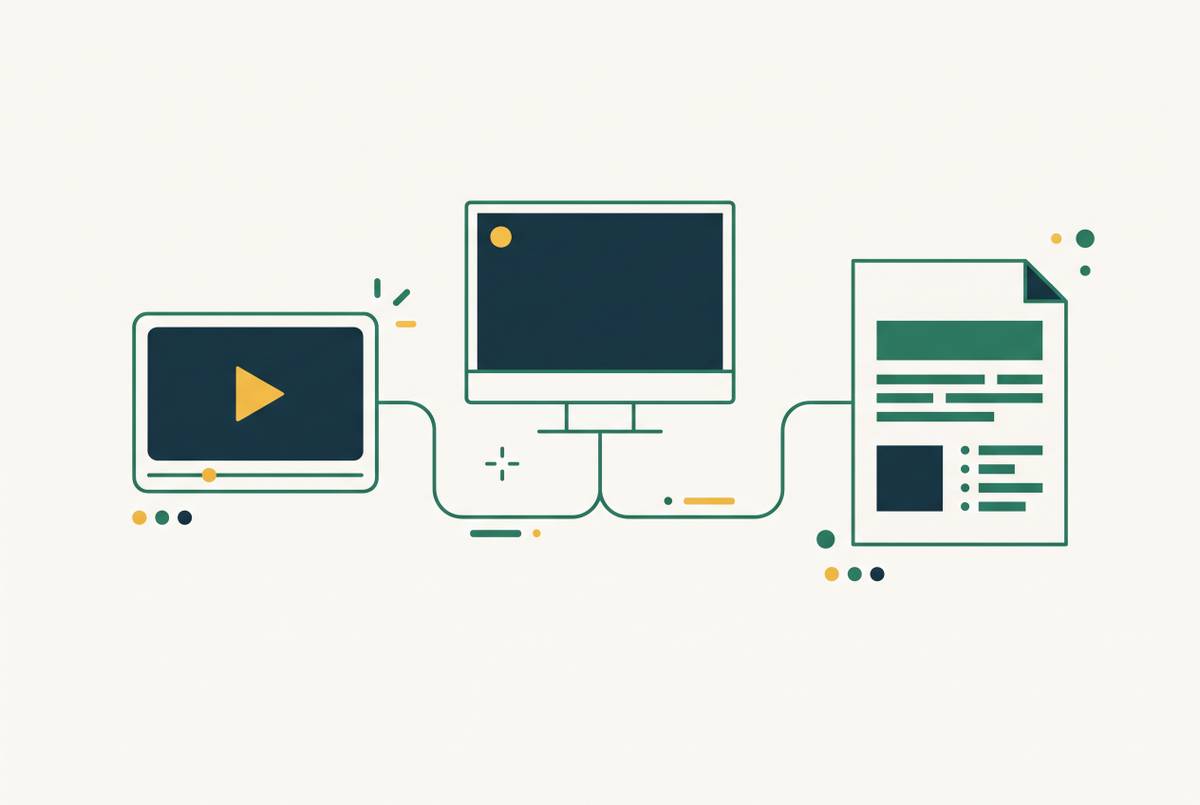
Clueso transforms raw screen recordings into polished walkthroughs and written guides automatically.
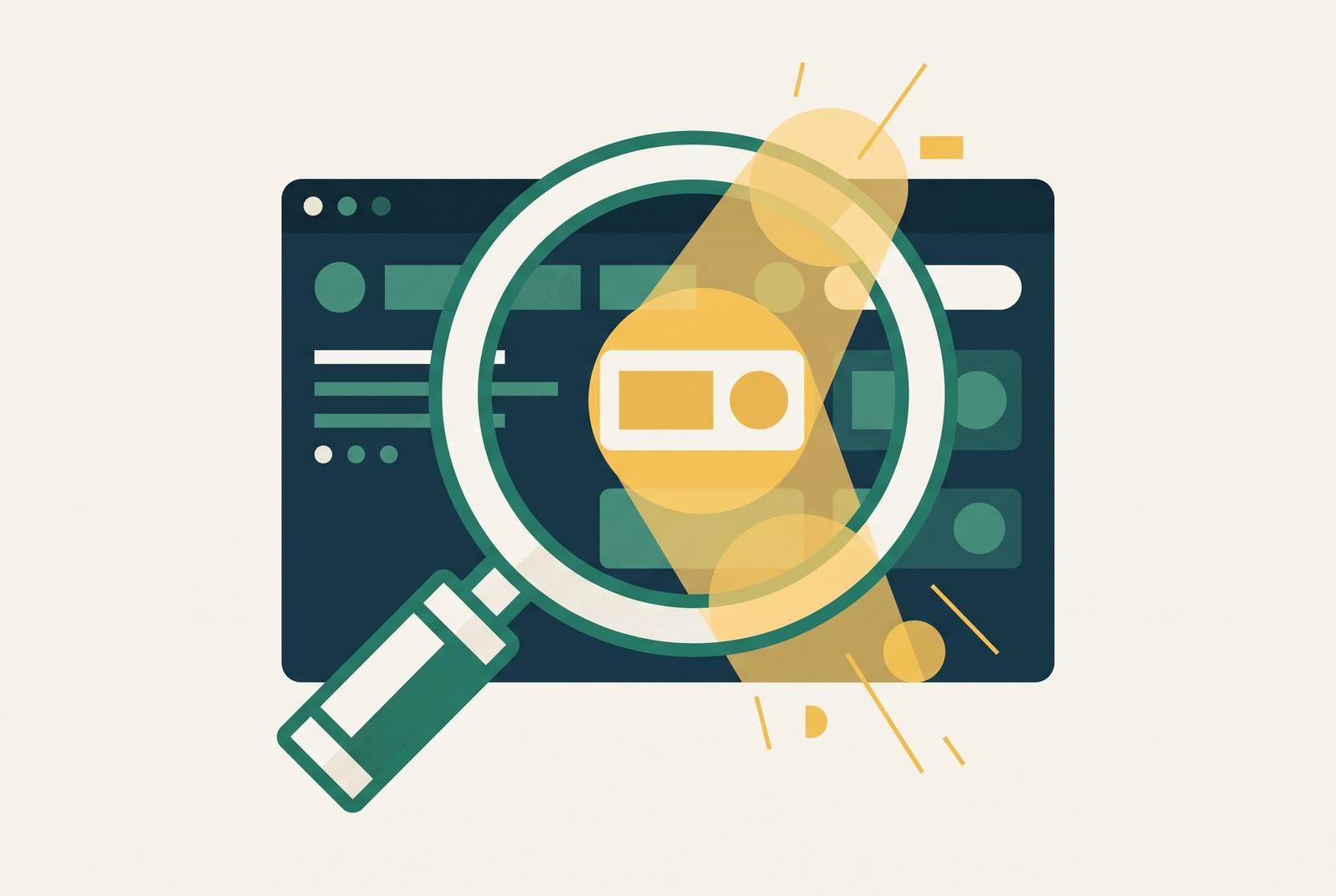
Clueso can turn a single screen recording into both a product walkthrough video and step-by-step documentation, without separate recordings for each format. Its workflow combines script cleanup, voiceover, smart zoom, captions, and written guides. The point of AI smart zoom and highlight tools is not sharper pixels but clearer attention, with less manual editing to show viewers what matters.
Why UI screencasts fail viewers before a single edit is made
A viewer squints at a 1080p recording, loses the cursor, and misses the menu item that made the screen change. The image is sharp, but the action is hard to follow. A full-monitor recording makes a small button look as important as a large stretch of desktop chrome. Nothing tells the viewer which part deserves attention or when to look there.
Dense SaaS interfaces make this worse because the relevant control can look much like everything around it. A form field may occupy only a small fraction of the frame, yet hold the whole point of the explanation. The viewer has to find that field while also following the procedure. Smart zoom and focus effects take on some of that search work by making meaningful interactions stand out. The goal is not to make the recording look more elaborate, but to make the instruction easier to follow.
Why manual keyframing has been the traditional answer and why it breaks down at scale
The traditional fix is to add zoom keyframes after recording. An editor decides where the camera should move, how close it should get, and how long it should hold. This transfers the work of finding the important action from the viewer to the editor. Someone has to place every useful camera move on a timeline.
A 10-minute tutorial can require 60 to 90 minutes of manual editing just to add zooms and clean up the result. That work scales with content volume, so a growing tutorial library brings a growing editing bill. Features that change often also need repeated recording and editing, even though their instructions are the most urgent to update. Outdated content stays live or useful content is never made. Either way, human support staff end up doing work that clear instructions could have handled.
For teams without dedicated video producers, the practical choice can shrink to raw recordings or no recordings. AI-assisted editing cuts that cost by making the camera moves so someone no longer has to build each one. If the same workflow also creates written documentation, there is one less task to do separately. The gain is therefore larger than a faster zoom effect. It makes polished instructions more practical to produce and maintain.
How cursor-tracking auto-zoom works and what it can and cannot detect
Cursor-tracking auto-zoom starts with interaction events. The recorder captures mouse positions at high frequency together with clicks and keyboard activity. After recording, it identifies where the mouse settles, where typing occurs, and where clicks cluster. Those signals become zoom keyframes and camera movements. The camera moves when activity picks up, follows the cursor, and stays there until the next cluster.
AutoZoom uses this approach to generate zoom, motion blur, and click visuals without requiring a manual timeline. FocuSee also follows clicks and typing sections with automatic zoom and smooth transitions. Neither mechanism needs to reason about why a particular action matters to detect where it happened. That makes event-driven zoom useful for removing repetitive editing work. It also explains its ceiling, since a camera can follow every click correctly while producing a fragmented lesson.
The handling of nearby events is especially important. FollowCursor, an open-source Python implementation for Windows, merges events in the same region into sustained zoom segments. It also chains nearby clusters, up to four per chain, so the camera can stay close and pan, avoiding repeated pullouts and zoom-ins. This is zoom chaining, a specific editing decision that separates smooth movement from jitter. When evaluating any event-driven tool, look at both how it finds individual clicks and how it handles a run of nearby actions.
What separates AI narrative zoom from cursor-tracking zoom
Narrative zoom asks a different question of the recording. Instead of treating each event as a reason to move the camera, it tries to infer which moments carry the explanation. In the mechanism described here, the model's input consists of structured data including timestamps, cursor positions, speeds, click locations, and typing bursts. It uses those patterns to infer the shape of the interaction.
That distinction matters when a long recording contains many clicks but only a few instructionally important moments. A critical configuration step, a form submission, or a state change that reveals a feature may need to stand out more than routine navigation. Cursor tracking detects that something happened. Narrative zoom tries to judge whether that event helps explain what is happening in the steps around it. Its value lies in choosing emphasis and pacing.
Clevera illustrates this direction through a reconstruction model that treats recording as a data collection step. This differs from simply adding camera movement around an existing capture. It does not, by itself, establish that narrative zoom is a more mature or better choice for every workflow. Nor does inference from interaction patterns amount to knowing the audience or learning objective. It offers a more selective first pass that still requires instructional judgment.
How highlight and spotlight tools complement zoom to solve the attention problem more completely
Zoom makes an area larger, but that alone does not tell the viewer what to look at. A spotlight can make a form field stand out while keeping the rest of the interface in view. Blur can make other parts of the UI less distracting or hide private information. These effects are useful when moving closer would remove context the viewer still needs.
Click visuals make the moment of interaction easier to see. AutoZoom includes ripple, glow, and cursor smoothing, while its keystroke display makes keyboard actions visible in six styles. That matters in power-user tutorials, where a shortcut can change the screen without any visible click. Its Text Focus feature on macOS detects text fields and spotlights them. For forms and code walkthroughs, this gives the viewer a more precise target than cursor movement alone.
Annotations add an explanation on top of that target. FocuSee provides text, shapes, arrows, callouts, spotlights, and blur, together with click animations and a 3D cursor-motion option. AutoZoom also includes pens, arrows, and shapes that animate on cue. A callout can explain why a step matters, whereas a ripple mainly shows when the click occurred. Teams should therefore evaluate the full attention toolkit rather than treating an auto-zoom checkbox as proof that a recording will be clear.
How to turn one screen recording into a walkthrough video and step-by-step documentation with Clueso
Clueso takes a screen recording and uses AI to rewrite the script, add lifelike voiceovers, apply smart zoom and captions, and generate accompanying SOPs or how-to articles. The same source recording can therefore supply a product walkthrough and a step-by-step guide. Written instructions can include automatically captured screenshots and GIFs. There is no need to record the procedure separately for each format.
This is a broader scope than improving camera movement. With an integrated platform such as Clueso, script cleanup, narration, editing, and documentation become parts of one workflow. Its one-click translation supports a wide range of languages, while branded templates, blur tools, and an article co-pilot cover other work around the recording. A zoom-focused tool can shorten editing while leaving those tasks with the team.
Clueso's Teamworks customer account describes reduced production time for customer education across 20+ products. That is a relevant use case because repeated production across a content library magnifies the cost of separate steps. Its pricing spans self-serve plans and enterprise tiers, serving teams at different scales. An integrated platform is a credible choice when the required output is a maintained set of videos and documents.
How to choose between a zoom-focused tool and an integrated platform based on your actual workflow
Start with the work that is actually slowing production. If recordings are already well structured and the main delay is adding camera movement, AutoZoom or FocuSee addresses that problem directly. AutoZoom offers a lifetime license or monthly subscription, while FocuSee is available on Windows and macOS. Those are legitimate options when script, narration, and publishing already have a workable process. An integrated platform is not automatically a better fit just because it covers more tasks.
The recording environment and desired editing control also matter. Screen Studio is worth evaluating for a macOS-only workflow, while Cursorful offers a Chrome extension with no sign-up required. Check official pricing pages before purchasing because promotional rates change. Camtasia offers an editor-first workflow with AI video features at its Create tier for $249/year. It suits teams that need a full editing timeline as well as AI assistance.
The choice changes when the team also handles voiceover, written documentation, localization, or a library of content for more than one product. For customer education, L&D, product marketing, and sales enablement teams producing content at volume, Clueso brings smart zoom, script, voice, documentation, and localization into one workflow. The shortlist should follow the deliverables the team must produce.
Creative control is the other deciding factor. Integrated automation is useful only if the creator can still direct the script, branding, and structure. Clueso is designed to leave those decisions with the human creator while automating mechanical production work. Teams that need to control the details on a timeline may still want an editor-first approach.
What AI smart zoom still cannot do, and where human judgment remains essential
Even sophisticated smart zoom works from evidence of interaction. Cursor tracking cannot tell whether a click was important or merely confusing. A long pause before submission might deserve a hold, or it might be hesitation that should be cut. Narrative inference can improve that decision, but it still relies on patterns. It does not acquire the audience's needs simply by receiving more timestamps and cursor positions.
Human review must therefore judge more than whether the camera landed in the right place. The reviewer needs to decide whether the emphasis, pacing, and narration serve the learning objective. For compliance, safety, legally sensitive procedures, or culturally specific material, a subject-matter expert should review AI-generated zoom and narration before publication. Where localization is involved, a native speaker should also review the result.
There is also a measurement gap between faster production and better learning. Most teams measure how fast they make screencasts rather than whether those screencasts help people finish tasks, cut support tickets, or shorten time-to-value. Those outcomes are not interchangeable, even when the time saving is clear. Use AI zoom to handle mechanical editing and make a strong first draft, then have a human check whether that draft gives the viewer what they need.